Windows 10 / 11 PC — full appv18.4
Sense Director Full for Windows
Create and edit sensory timelines, configure devices and rooms, use STG tools, and download shows from the shared Library.
Download Full Windows App↓ Sense Director
SENSE DIRECTOR · MEMBER DOWNLOADS
Choose the full creation app or the lightweight Player for Windows or Android. Account setup, device discovery, testing, and the timeline Library are built in.
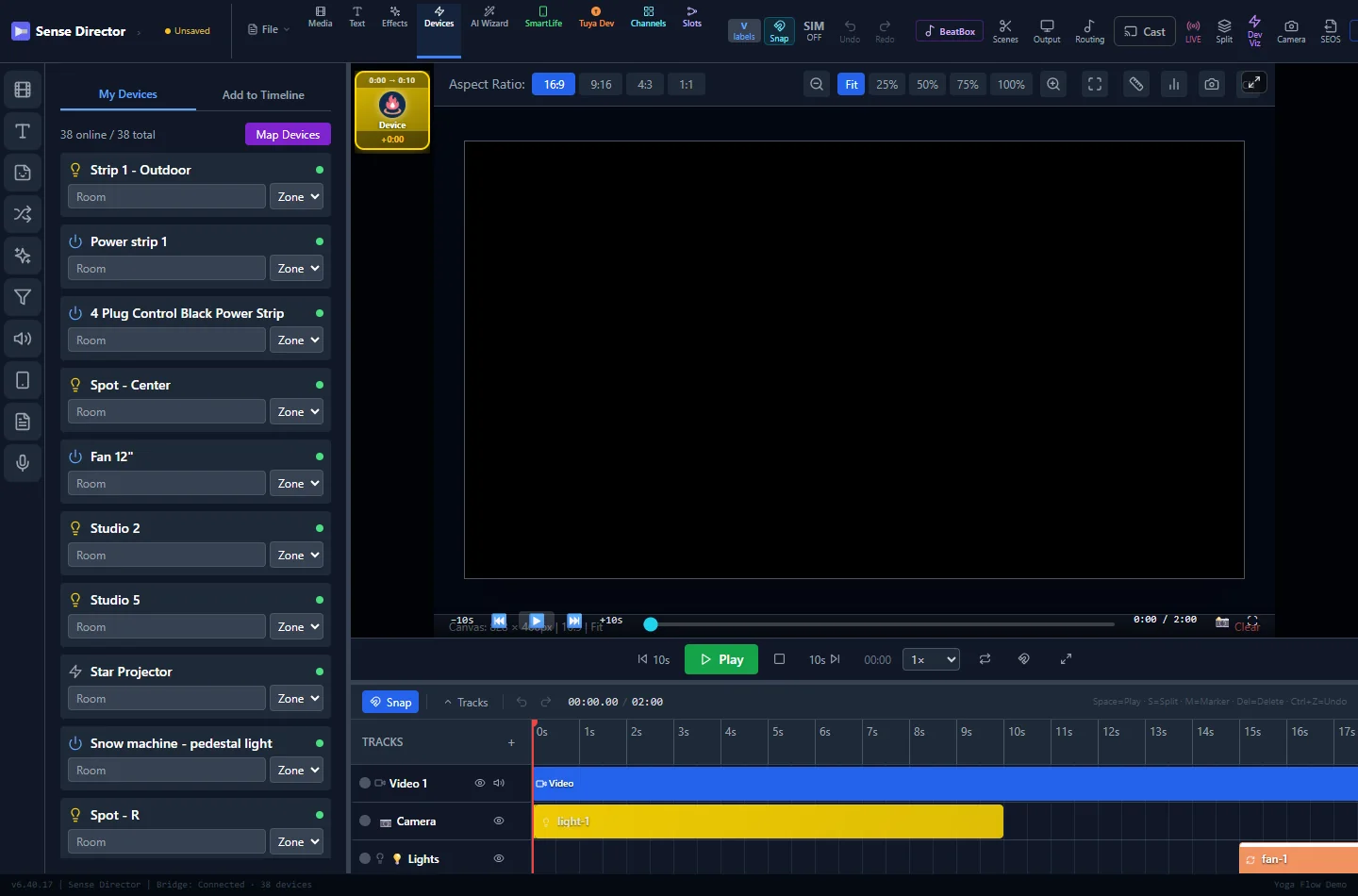
Sense Director timeline editor
CHOOSE YOUR APP
Use Full to create and edit timelines, or Player for playback and device control. Every app includes Configuration Wizard, device discovery, room assignment, and device testing.
Create and edit sensory timelines, configure devices and rooms, use STG tools, and download shows from the shared Library.
Download Full Windows App↓Download timelines from the Library, map them to this room, and play through the devices connected to this PC.
Download Windows Player↓Create and edit timelines, use STG tools, open the Library, configure devices, and play through the tablet.
Download Full Android Tablet App↓Lightweight v18.4 playback build for Android phones, tablets, and supported Fire tablets.
Download Android Player↓GUIDED SETUP
Download Sense Director Player for Windows v18.4, install it, and sign in.
Confirm your account, let Smart Life, WLED, Bluetooth, and other device discovery finish, then configure the devices you own.
Open Test My Devices to confirm each configured output from this player.
Choose any available movie, short, yoga, or device demonstration timeline and download it when you are ready.
Review the automatic device mapping, make any changes, and keep All Stop close at hand.
Use the same sign-in across players
Network, Bluetooth, and local outputs
Movies, shorts, yoga, and demonstrations
All Stop remains visible
WINDOWS SETUP AND DEVICE TEST
Use the same member download, Configuration Wizard, and device test on every supported Windows computer.
Choose Windows Player for playback, or Full Windows App to create and edit too. Install v18.4, launch Sense Director, and sign in.
Follow Configuration Wizard through account, role, device discovery, and room setup.
Confirm Smart Life devices and powered WLED controllers on this PC's local network. The wizard waits for both searches to finish.
Configure Bluetooth and other local devices you own, then test the controls their capabilities provide.
Use the movable Report / Help button. Preview the screenshot, narrated screen recording, or camera video, add a comment, and submit it.
The scan completes even when a device family returns zero results. An empty result explains what to check and provides a retry.
FIRST RUN · BUILT INTO THE APP
Open the installed app and follow Configuration Wizard. It confirms your role and account, scans Smart Life and WLED devices, checks local adapters, and guides tests for the devices you configure. You can reopen it later from Settings.
Sense Director test builds · updated 10/27/2026 · verified release files are served to signed-in members.